User guide#
Input files#
Configuration file#
simulation.ini contains all the basic configurations to run a simulation.Configuration name |
Data type |
Description |
|---|---|---|
NB_PHOTONS |
int |
The number of photons used in the simulation |
MAXIMUM_DEPTH |
int |
The maximum number of times that the light bounces
in the scene
|
SCALE_FACTOR |
int |
The size of geometries. The vertices of geometries
is recalculated by dividing their coordinates by
this value
|
T_MIN |
float |
The minimum distance between the point of
intersection and the origin of the light ray
|
NB_THREAD |
int |
The number of threads on the CPU used to calculate in
parallel. This value is between 0 and the number of
cores of your CPU.
|
BACKFACE_CULLING |
yes/no |
Define which mode of intersection is chosen: intersect
only with the front face (yes) or intersect with both
faces (no)
|
BASE_SPECTRAL_RANGE |
int int |
The base spectral range which includes all the other
spectral ranges. The first value is the start of band
and the second is the end of band. Ex: 100 200
|
DIVIDED_SPECTRAL_RANGE |
int [int int] |
The list of spectral ranges divided from the base
spectral range. The first value is the number of
divided parts, the value start and end of band is
continue right after. These bands have to be smaller
than the base spectral range. Ex: 2 100 150 150 200
|
RENDERING |
0/1 |
1 for rendering an image after computation 0 for no image (faster)
|
KEEP_ALL |
0/1 |
Whether or not to keep all the photons shot in a simulation. Can
be useful to visualise what happened but very memory intensive.
Use with caution
|
$ENVIRONMENT_FILE |
string |
The filepath of the environment to be loaded. Should be a rad file.
|
$OPTICAL_PROPERTIES_DIR |
string |
The path of the directory containing the optical properties
of the objects.
|
$NB_PHOTONS 1000000000
$MAXIMUM_DEPTH 50
$SCALE_FACTOR 1
$T_MIN 0.1
$NB_THREAD 8
$BACKFACE_CULLING yes
$BASE_SPECTRAL_RANGE 400 800
$DIVIDED_SPECTRAL_RANGE 2 600 655 655 665
Room file#
.rad is supported by our tool..rad file, there are two steps:void material_type material_name
0
0
material_data
material_name geometry_type object_name
0
0
geometry_data
geometry_type and material_type, we will have the different ways to define the geometry_data and material_datapolygon and the material type metalvoid metal Sol
0
0
5
0.37047683515999996 0.37047683515999996 0.37047683515999996 0.100 0
Sol polygon dallage
0
0
12
0.0 0.0 0
2400.0 0.0 0
2400.0 1840.0 0
0.0 1840.0 0
.rad can be found in this file refman.pdfOptical property files#
The files containing the optical properties are saved in this structure of folder:
Material |
Visually estimated value |
|---|---|
Aquanappe |
0.1 |
CentrePlafond |
0.5 |
CorniereAlu |
0.3 |
PiedsTablette |
0.3 |
MiroirCaissonLampes |
0.4 |
lambda |
moy |
|---|---|
300 |
0.126 |
301 |
0.135 |
302 |
0.145 |
… |
… |
Sensor file#
X |
Y |
Z |
rayon_capteur |
Xnorm |
Ynorm |
Znorm |
|---|---|---|---|---|---|---|
110 |
930 |
1000 |
10 |
0 |
0 |
1 |
210 |
930 |
1000 |
10 |
0 |
0 |
1 |
310 |
930 |
1000 |
10 |
0 |
0 |
1 |
… |
… |
… |
… |
… |
… |
… |
Plant file#
Spectral heterogeneity file#
wavelength(nm) |
measured PPFD (umol m-2 s-1 nm-1) |
|---|---|
401 |
0.0555 |
403 |
0.086 |
405 |
0.14 |
… |
… |
Calibration points file#
X |
Y |
Z |
Nmes_start1_end1 |
Nmes_start2_end2 |
… |
Nmes_startn_endn |
|---|---|---|---|---|---|---|
610 |
1330 |
1400 |
3.91336 |
19.6182 |
… |
value_1 |
710 |
1330 |
1400 |
4.17343 |
20.8869 |
… |
value_2 |
1210 |
1330 |
1400 |
3.80179 |
18.8231 |
… |
value_3 |
… |
… |
… |
… |
… |
… |
… |
Run a simple simulation#
These are the basic steps to run a simple light simulation with this tool:
Setup input files#
Create a configuration file (simulation.ini)
$NB_PHOTONS 1000000000
$MAXIMUM_DEPTH 50
$SCALE_FACTOR 1
$T_MIN 0.1
$NB_THREAD 8
$BACKFACE_CULLING yes
$BASE_SPECTRAL_RANGE 400 800
$DIVIDED_SPECTRAL_RANGE 2 600 655 655 665
Create a room file (testChamber.rad) with only one light
void light lum400
0
0
3
0.4 0.4 0.4

lum400 cylinder lamp
0
0
7
715.62 1670.0 2105.0
743.193 1670.0 2105.0
0.1
Create a sensor file (captors_expe1.csv) with only one sensor
X,Y,Z,rayon_capteur,Xnorm,Ynorm,Znorm
110,930,1000,10,0,0,1
./PO to save the optical property of all the object. To simplify, we can leave it empty for now.The calibration points file and spectral heterogeneity file are optional.
Write the core program#
Create a python file (main.py) which contains the core program
from openalea.spice.simulator import Simulator

if __name__ == "__main__":

    simulator = Simulator(config_file="simulation.ini")
    simulator.addVirtualDiskSensorsFromFile("sensors_expe1.csv")
    simulator.run()
    simulator.results.writeResults() #write results to a file
Run and results#
mamba activate env_name
python main.py
./result. This is an example of result.id |
N_sim_600_655 |
N_sim_655_665 |
|---|---|---|
0 |
13635 |
13966 |
Calibrate the results#
calibrateResults.calibrated_res = simulator.calibrateResults("spectrum/chambre1_spectrum", "points_calibration.csv")
calibrated_res.writeResults() #write results to a file
Linear Regression to calculate the coefficients to convert the results of simulation to irradiance (a unit used to measure the power of energy).Visualize the room#
To visualize the room, after defining the input files, we use a function named visualizeScene. Here is the complete code for this program:
from openalea.spice.simulator import Simulator

if __name__ == "__main__":

    simulator = Simulator(config_file="simulation.ini")
    simulator.addVirtualDiskSensorsFromFile("sensors_expe1.csv")
    simulator.visualizeScene("ipython")
To obtain the 3D scene, we have to run this program through ipython or if in a notebook we use oawidgets.
ipython
%gui qt5
run main.py
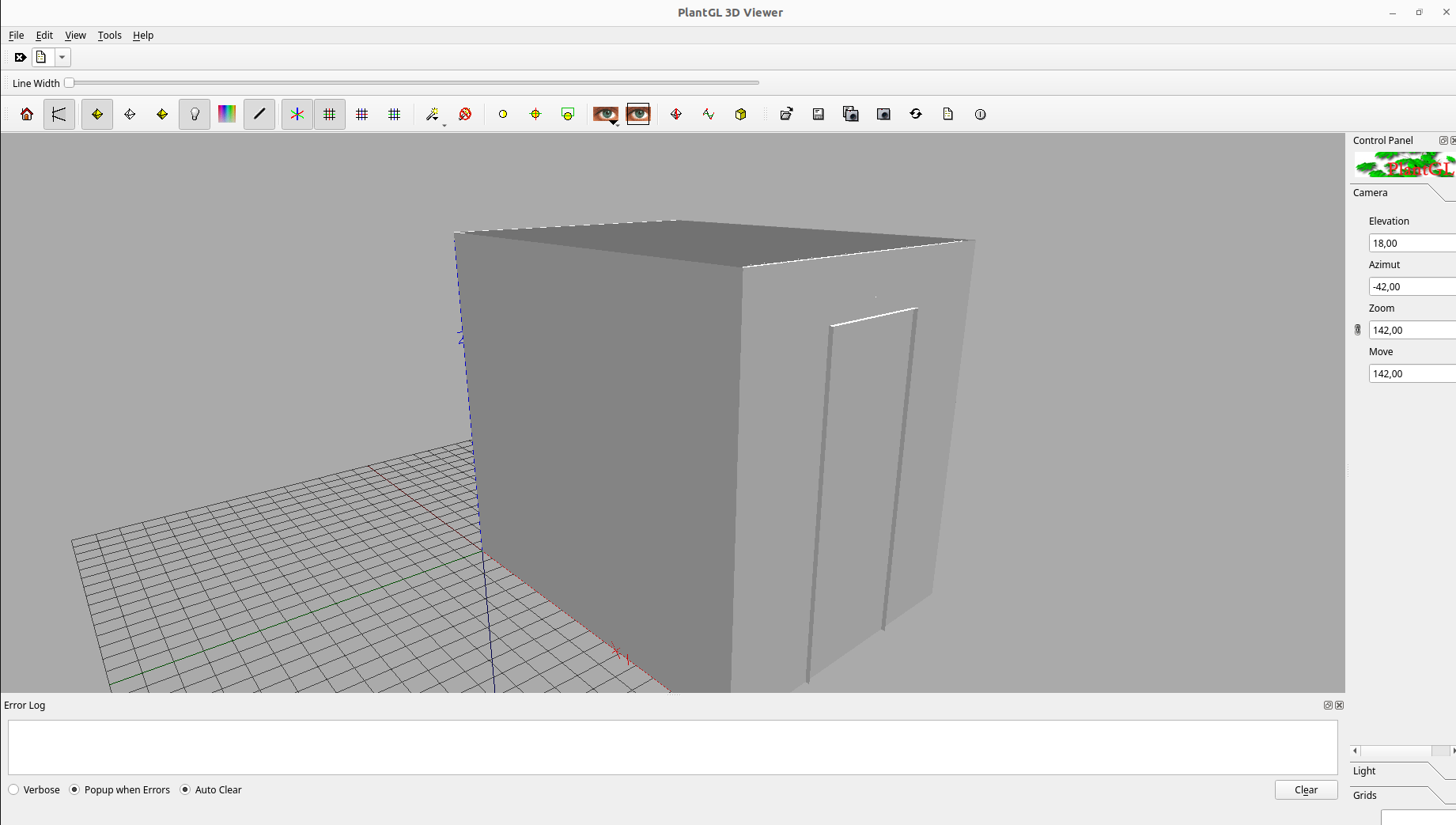
It is also possible to visualize the simulation’s results in different ways with two other functions:
visualizeResultswhich will apply a color map on each sensor object depending on the number of photons on it. By default the colormap used is ‘jet’.visualizePhotonswhich will display all the photons in the photon map in a 3d scene.
Warning
The function visualizePhotons will create each individual photons in the scene. This can be very intensive.
Use with caution.
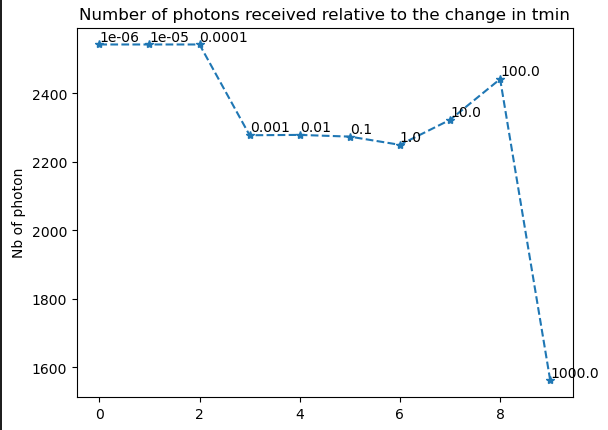
Test value Tmin#
Tmin is too small.Tmin. The result of this function is a graph showing the change in the number of photons after testing different values of Tmin.from openalea.spice.simulator import Simulator
if __name__ == "__main__":
simulator = Simulator(config_file="simulation.ini")
simulator.addVirtualDiskSensorsFromFile("sensors_expe1.csv")
simulator.test_t_min(int(1e6), 1e-6, 10, True)